If you are looking to scheduling a recurring email in Outlook by itself, give up. Outlook does not have any native functionality to do this.
You will have to, unfortunately, either find a 3rd party application or add on.
However, if you have access to Power Automate you can do it.
- First create a new flow by clicking the “New Flow” button

- From the drop-down menu choose “Automated cloud flow” from

- Click the “Add a trigger” button

- Search for the “Recurrence” trigger which should be under Schedule.

- The Recurrence panel will open and the Parameters section
Interval: Is how many of the frequency you need. For example, if you want bi-weekly, you will need to put 2. Because it is every two weeks.
Frequency: Day, week, month, etc.
Time Zone: Choose your time zone.
On these days: Choose between Monday – Friday
At these hours: 0 – 23, Military time
At these minutes: 0 – 59
At the bottom it will show a preview of how it will run. So ensure it is correct!
- Then click the plus sign to add an action

- Then find “Send an Email”
 There are couple, but they should all work regardless.
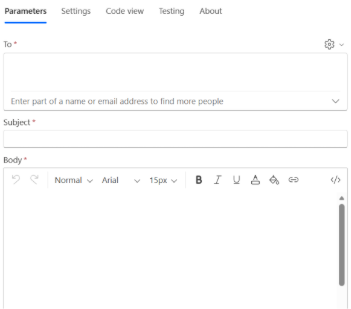
- Another Parameter panel will open. Here is where you put your email. You can put who you want to send it to, subject, body, and etc.
However, to note, you cannot send to a list. To do that you are going to need SharePoint List as a workaround. That’s another tutorial.
Just to be on the cautious side. USE YOUR OWN EMAIL. This way you can test it later and not clog someone else’s inbox.
- Click the “Save” button
 in the upper right corner.
- Then click the “Test” button
 in the upper right corner.
- The Test Flow panel will open. Choose to test “Manually”

- Click the “Test” button the bottom, it should have turned blue.

- See if you got the email.
- Go back to the Flow Dashboard, at the bottom you will the run history. It will tell you if it succeeded. If it did, congrats!

Leave a Reply
You must be logged in to post a comment.